Friday, 30 January 2015

Slowly Changing Dimension (SCD)


        The Slowly Changing Dimension transformation coordinates the updating and inserting of records in data warehouse dimension tables. For example, you can use this transformation to configure the transformation outputs that insert and update records in the Dimension table.

Example:
      I am having a Customer dimension table and source file. Using source file i need to update the dimension table using SCD Transformation.

Source File:

Target Table Script:


CREATE TABLE DIM_CUSTOMER
(
      ID VARCHAR(10)
      ,NAME VARCHAR(50)
      ,MOBBILE_NUMBER VARCHAR(20)
      ,ADDRESS VARCHAR(1000)
      ,LATEST_FLG VARCHAR(10)
)


        In the above file, Column ID and Name are Fixed attributes (Never change), Mobile number is changing attribute (Can change, we need to maintain latest number) and Address is Historical attribute (Can change but we need to maintain history).


  • Open BIDS.
  • From Control flow items, drag and drop “Data flow task” into designer surface.
  • From toolbox drag and drop "Flat file source" and configure with source file.
  • From the toolbox drag and drop "Slowly Changing Dimension" (SCD).
  • Connect Flat file source green arrow to SCD.


  • Edit the SCD Transformation (select SCD and right click on that and select edit option). 'Slowly Changing Dimension Wizard' will open.
  •  Using 'Input Column' drop down list select the required columns. Using 'Key Type' drop down list select the key type.
  • Click on 'Next Button'.
  • Select 'Dimension Columns' and 'Change Type' from drop down list. Click on 'Next' button.
  • Again Click on "Next" button.
  • Select Latest_Flg from, Value When Current and Expiration value from the drop down list. Click on "Next" button.
  • Again Click on "Next" button. Finally click on "Finish" Button. Then Package will create automatic.
  •  Package is ready to execute. Run the package.
Output:

  • If we change the Mobile number in the source file, then the change should reflect in the table.
Source File:
  • Run the SSIS package.
Output:
  • Record is updated as expected.
  • If we change Address in the source file, then new record should insert. Existing record Latest flag should update as 'Expired'.
  • After source file change, run the SSIS package.
Output:
  • Table is updated as expected.

Thursday, 4 December 2014

Unpivot Transformation


        Unpivot is the opposite to Pivot transformation. Using Unpivot transformation we can interchange the columns into rows.

Example:
Source table:


CREATE TABLE UNPIVOT_SOURCE
(
YEARS INT,
SOAP NUMERIC(12,4),
BRUSH NUMERIC(12,4),
PASTE NUMERIC(12,4)
)

INSERT INTO UNPIVOT_SOURCE VALUES
(2010,3500.25,3201.45,2100.61)
,(2011,2842.15,3654.75,2236.24)
,(2012,2689.26,3214.23,2432.55)

 
Target table:
CREATE TABLE UNPIVOT_TARGET
(
YEARS INT,
PRODUCT NVARCHAR(30),
TOTAL_PRICE NUMERIC(12,4) 
)


SSIS Package:
  • Connect to the SQL Server and create the above tables.
  • Open SSIS Package, In 'Control Flow' drag and drop 'Data flow task' from Toolbox.
  • Go to Data flow and drag and drop 'OLE DB Source' and configure with source table.
  • From Toolbox drag and drop 'Unpivot Transformation', and connect 'OLE DB Source' green arrow.
  •  Edit the 'Unpiot transformation'. Select the columns check box, which we are going to convert as rows (Soap, Brush and Paste).
  • In the above screen we can see the 'Input Column', 'Destination Column' and 'Pivot key value'. In the 'Destination Column' section we need to give destination column name(TOTAL_PRICE). The source columns 'Soap, Brush and Paste are having total cost information, this information is related to 'TOTAL_PRICE' (destination column).
  • In the bottom of the above screen we can see the 'Pivot key value column name' text box. There we need to give the 'Name' for the new Unpivot column (PRODUCT).
O/P:

Tuesday, 2 December 2014

Pivot Transformation


        Using Pivot transformation we can interchange the rows into columns.

Example:
Source table:
CREATE TABLE PIVOT_SRC
(
YEARS INT,
PRODUCT VARCHAR(30),
TOTAL_PRICE NUMERIC(12,4)
)

INSERT INTO PIVOT_SRC VALUES
(2010,'SOAP',3500.25)
,(2010,'PASTE',2100.61)
,(2010,'BRESH',3201.45)
,(2011,'SOAP',2842.15)
,(2011,'PASTE',2236.24)
,(2011,'BRESH',3654.75)
,(2012,'SOAP',2689.26)
,(2012,'PASTE',2432.55)
,(2012,'BRESH',3214.23)
Target table:


CREATE TABLE PIVOT_TARGET
(
YEARS INT,
SOAP NUMERIC(12,4),
BRESH NUMERIC(12,4),
PASTE NUMERIC(12,4)
)


SSIS Package:
  • Connect to the SQL Server and create the above tables.
  • Open SSIS Package, In 'Control Flow' drag and drop 'Data flow task' from Toolbox.
  • Go to Data flow and drag and drop 'OLE DB Source' and configure with source table.
  • From Toolbox drag and drop 'Pivot Transformation', and connect 'OLE DB Source' green arrow.
  • Edit the 'Pivot Transformation'.
  • Go to 'Input Columns', Select required 'Input Columns' check boxes.
  • Go to 'Input and Output Properties'
  • Expand the 'Pivot Default Input' and 'Pivot Default Output', Using '+' sign.
  • In the above screen shot we can see the input columns YEARS,PRODUCT AND TOTAL_PRICE. For these columns we need to set the 'PivotUsage' property value based on column usage.


Pivot
Usage
key
Description
Sample Source
columns
0
The column will passed through unaffected

1
The column values become the rows of the pivot
YEARS
2
The column values become the column names of the pivot
PRODUCT
3
The column values that are pivoted in the pivot
TOTAL_PRICE
 
  • Based on Source column usage, i have assigned 'PivotUsage' values. (Years-1,Product-2 and Total_Price-3)
  • Click on 'Output Columns' and add New columns using 'Add Column' Button. Rename the New columns.
  • After creating output columns, We need to assign 'PivotKeyValue and SourceClumn' Property values for each 'Pivot Default Output' columns. Then only mapping will create from input columns to the output columns.
  • 'YEARS' output column values should come from 'YEARS' input column. So We need to assign the input column 'LineageID' values to the output column "SourceClumn property", and output column name to the output column 'PivoteKeyValue'.
  • Same way we need to map remaining columns.


Output Column name
Mapping Input column
Years
PioveteKeyValue: Name of the Output Column (Years)
SourceColumn: LinageID of the 'YEARS' column
Soap
PioveteKeyValue: Name of the Output Column (Soap)
SourceColumn: LinageID of the 'TOTAL_PRICE' column
Paste
PioveteKeyValue: Name of the Output Column (Paste)
SourceColumn: LinageID of the 'TOTAL_PRICE' column
Brush
PioveteKeyValue: Name of the Output Column (Brush)
SourceColumn: LinageID of the 'TOTAL_PRICE' column


O/P:


Monday, 1 December 2014

Script Task


Source file existence check using Script task:
         If the source file is not available then ETL execution will fail. For avoiding this failure, we can implement a task to check the source file existence, based on source file availability we can take further action.

Example:     Step 1:
  • Create the below three variables
    • Name: SourceDirectory     Data type: String     Value: D:\Source\ (Source directory)
    • Name: SourceFileName     Data type: String     Value: Customer.txt (Source file name)
    • Name: FileExistence           Data type: String     Value: False
      Step 2:
  • From Toolbox drag and drop 'Script task'.
  • Edit the script task and select ScriptLanguage as "Microsoft Visual Basic". Select 'SourceDirecotry' and 'SourceFileName' variables in the "ReadOnlyVariable" list. Select 'FileExistence'  variable from the "ReadWriteVariables" list.
  • Click on "Edit Script..." button. Vb script will open, used the below script to check source file availability.


        dim FullPath = Dts.Variables("User::SourceDirectory").Value.ToString() + Dts.Variables("User::SourceFileName").Value.ToString()
        If System.IO.File.Exists(FullPath) Then
            Dts.Variables("User::FileExistence").Value = "True"
        Else
            Dts.Variables("User::FileExistence").Value = "False"
        End If

 
  • Save the script. Close the 'Integration Service Script Task' window.
  • Click on 'Script Task Editor' window 'OK' button.
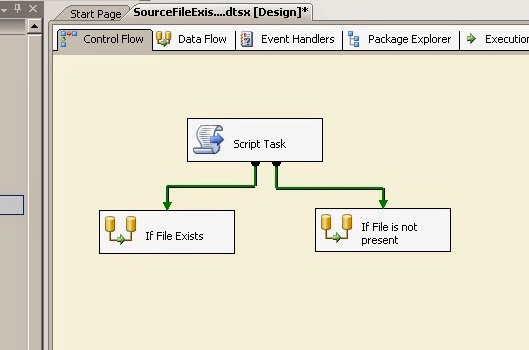
  • From Toolbox drag and drop two 'Data flow tasks'. 1st task will run if source file is present. If source file is not present second task will run. For this process i am going to write expressions.
  • Connect the Script task green arrows (precedence constraint) to the Data flow tasks.
 
      Step 3:
  • Right click on the first 'Precedence Constraint' and select 'Edit' option.
  • 'Precedence constraint Editor' window will open.
  • Select 'Expression and Constraint' from the 'Evaluation operation' drop-down list.
  • Writhe the expression @[User::FileExistence] == "True"  in the 'Expression' text box.
 
  •  Same way write expression (@[User::FileExistence] == "False" ) for second 'Precedence constraint'
 
      Step 4:
  • Now the Package is ready. Source file is present, so if i run the package, first 'Data flow task' should run.
  • In the above screen we can see that the first 'Data flow task' is executed.
  • Now i have removed the source file. If i run the ETL second 'Data flow task' should run.
  • In the above screen we can see that the second Data flow task is executed. So source file is not present.

Friday, 21 November 2014

Source file existence check


         If the source file is not available then ETL execution will fail. For avoiding this failure, we can implement a task to check the source file existence, based on source file availability we can take further action.

In this post i am going to explain 'Source file existence check' in two ways
  • Using 'Script task'
  • Using 'Foreach Loop container'

Using Script task:
     Step 1:
  • Create the below three variables
    • Name: SourceDirectory     Data type: String     Value: D:\Source\ (Source directory)
    • Name: SourceFileName     Data type: String     Value: Customer.txt (Source file name)
    • Name: FileExistence           Data type: String     Value: False
      Step 2:
  • From Toolbox drag and drop 'Script task'.
  • Edit the script task and select ScriptLanguage as "Microsoft Visual Basic". Select 'SourceDirecotry' and 'SourceFileName' variables in the "ReadOnlyVariable" list. Select 'FileExistence'  variable from the "ReadWriteVariables" list.
  • Click on "Edit Script..." button. Vb script will open, used the below script to check source file availability.


        dim FullPath = Dts.Variables("User::SourceDirectory").Value.ToString() + Dts.Variables("User::SourceFileName").Value.ToString()
        If System.IO.File.Exists(FullPath) Then
            Dts.Variables("User::FileExistence").Value = "True"
        Else
            Dts.Variables("User::FileExistence").Value = "False"
        End If

 
  • Save the script. Close the 'Integration Service Script Task' window.
  • Click on 'Script Task Editor' window 'OK' button.
  • From Toolbox drag and drop two 'Data flow tasks'. 1st task will run if source file is present. If source file is not present second task will run. For this process i am going to write expressions.
  • Connect the Script task green arrows (precedence constraint) to the Data flow tasks.
 
      Step 3:
  • Right click on the first 'Precedence Constraint' and select 'Edit' option.
  • 'Precedence constraint Editor' window will open.
  • Select 'Expression and Constraint' from the 'Evaluation operation' drop-down list.
  • Writhe the expression @[User::FileExistence] == "True"  in the 'Expression' text box.
 
  •  Same way write expression (@[User::FileExistence] == "False" ) for second 'Precedence constraint'
 
      Step 4:
  • Now the Package is ready. Source file is present, so if i run the package, first 'Data flow task' should run.
  • In the above screen we can see that the first 'Data flow task' is executed.
  • Now i have removed the source file. If i run the ETL second 'Data flow task' should run.
  • In the above screen we can see that the second Data flow task is executed. So source file is not present.

Using Foreach Loop container:
     Step 1:
  • Create a variable
    • Name: FileExistence           Data type: String     Value: False
      Step 2:
  • Drag and drop "Foreach Loop container" from the Toolbox.
  • Edit the "Foreach Loop container". Go to 'Collection'.
  • Select 'Foreach File Enumerater' from the 'Enumerator' drop-down list.
  • Give the "Folder path" and File name.
 
      Step 3:
  • Go to Variable mapping. Map the 'FileExistance' Variable.
  • Click on 'OK' button.
  • Drag and drop two data flow tasks from the Toolbox.
  • Connect the "Foreach loop container" green arrow to the data flow tasks.
       Step 3:
  • Right click on the first 'Precedence Constraint' and select 'Edit' option.
  • 'Precedence constraint Editor' window will open.
  • Select 'Expression and Constraint' from the 'Evaluation operation' drop-down list.
  • Writhe the expression @[User::FileExistence] != "False"  in the 'Expression' text box.
 
  •  Same way write expression (@[User::FileExistence] == "False" ) for second 'Precedence constraint'
  
      Step 4:
  • Now the Package is ready. Source file is present, so if i run the package, first 'Data flow task' should run.
  • In the above screen we can see that the first 'Data flow task' is executed.
  • Now i have removed the source file. If i run the ETL second 'Data flow task' should run.
  
  • In the above screen we can see that the second Data flow task is executed.

Wednesday, 19 November 2014

SSIS Package Scheduling


       In this post i am going to explain how to schedule SSIS package, using SQL Server Agent.
  • Connect to SQL Server.
  • Expand the SQL Server Agent.
  • Right click on 'Jobs' and select 'New Job...'. 
  • New job window will open.
  • In 'General' section give the required name in the "Name" Text box. If required give the description, in the description text box.
 
  •  Go to 'Steps' section and select the "New" button.
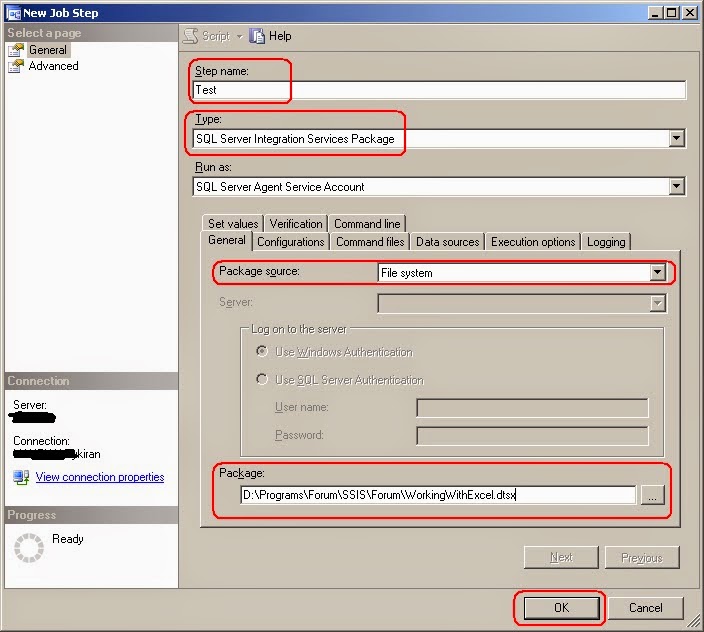
  • 'New Job Step' window will open.
  • Give the name in the 'Step Name' check box.
  • Select 'SQL Server Integration Services Package' from the 'Type' drop-down list .
  • Select 'Package Source'. My package is present in the local drive, so i am select 'File system'.
  • Browse the package package path.
  •  Click on "ok" button.
  • Go to 'Schedules' section.
  • Click on 'New' button. "New Job Schedule" window will open.
  • Give the Schedule name.
  • Select the schedule type. 
  • Select the 'Occurs'. I need to run the ETL on daily basic so i have selected "Daily" from the drop-down list.
  • I need to run the ETL at 1 am, so i have selected 1 am.
  • Click on 'OK' button. New Job Schedule window will disappear.
  • Click on New job window 'OK' button.
  • Job is created. we can find the newly created job in the 'SQL Server Agent' job list.