Monday, 29 September 2014

Create a folder with current date


Here i am going to explain, how to create a folder (folder name is current date 'YYYYMMDD') in SSIS using 'File System Task'.

  • Create three variables
    • Folder_Path
    • Folder_Name
    • Full_Path
Give the required path for the variable "Folder_Path", and writhe expression for the variables 'File_Name' and 'Full_Path' (Use the below expressions).

Variable NameData TypeValue/Expression
Folder_PathStringD:\ (Give required path)
Folder_NameStringSUBSTRING((DT_WSTR, 10) (DT_DBDATE) GETDATE(), 1,4)
+SUBSTRING((DT_WSTR, 10) (DT_DBDATE) GETDATE(), 6,2)
+SUBSTRING((DT_WSTR, 10) (DT_DBDATE) GETDATE(), 9,2) 
Full_PathString@[User::Folder_Path]+ @[User::Folder_Name]


  • Take 'File System Task' and edit.
  • Select "Operation" as "Create Directory" from the drop-down list.
  • Set "IsSourcePathVariable" as "True"
  • Select "Full_Path" Variable from the "SourceVariable" Drop-down list.
 
  • Click on "OK" Button and run the package.


Write Expression For a Variable


           In this post i am going to explain, how to write expressions for variables.

Example: I need a string variable. The variable value should be current date, date format is "YYYYMMDD".

  • Create a variable (Sample_Date) with string data type.
 

  •  Select the variable and press "F4", then variable properties will open.
 

  •  Set "EvaluateAsExpression" value as "True".
  • Go to Expressions and write the below mentioned expression for current date.
Expression: 
SUBSTRING((DT_WSTR, 10) (DT_DBDATE) GETDATE(), 1,4)
+SUBSTRING((DT_WSTR, 10) (DT_DBDATE) GETDATE(), 6,2)
+SUBSTRING((DT_WSTR, 10) (DT_DBDATE) GETDATE(), 9,2)


  • Save the SSIS package then we can see the variable value.


Sunday, 10 August 2014

SQL Server vs SSIS Data Types


SQL server
SSIS
smallint
two-byte signed intger (DT_I2)
int
four-byte signed integer (DT_I4)
bigint
eight-byte signed integer (DT_I8)
float
double-precision float (DT_R8)
char,varchar
string (DT_STR)
nchar,nvarchar
unicode string (DT_WSTR)
decimal,numeric
numeric(DT_NUMERIC)
decimal
decimal (DT_DECIMAL)
smallmoney,money
currency (DT_CY)
date
database date (DT_DBDATE)
datetime
database timestamp (DT_DBTIMESTAMP)


For More Information click on below link:

Wednesday, 6 August 2014

Get Source File Path From a SQL Table and Process the files in ssis


          One folder is having multiple text files, in those i need to load few files into a table. Required file paths are available in a SQL table. In the below example, i am going to explain how to read the file paths from a table.

Example:
Source Files:

Required file path table:
CREATE TABLE SRC_FILE_PATH
(
SNUM INT
,FILE_PATH VARCHAR(500)
)

INSERT INTO SRC_FILE_PATH VALUES (1,'D:\Programs\Forum\Source\Source\SourceFile1.txt')
INSERT INTO SRC_FILE_PATH VALUES (2,'D:\Programs\Forum\Source\Source\SourceFile2.txt')

Target table:
CREATE TABLE TGT_DATA
(
ID INT
,NAME VARCHAR(30)
,PRICE NUMERIC(16,4)
,DESCRIPTION VARCHAR(50)
)

Package Creation:
  • Create a variable with the name "SrcFileSet" and data type is "Object".
  • Create one more variable with the name "SrcFilePath" and data type is 'String'.
  • Drag and drop 'Execute SQL Task' and edit.
  • In "General" section give connection (fro SRC_FILE_PATH)
  • Give the SQL command (SELECT FILE_PATH FROM SRC_FILE_PATH)
  • Select "Full result set" option from
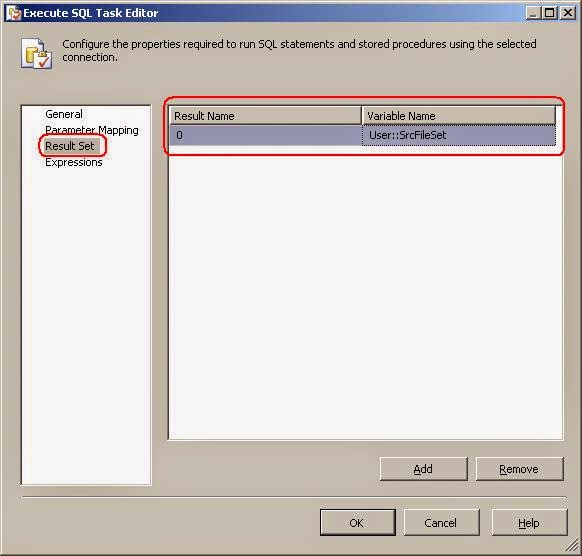
  • Go to "Result Set" Section and click on "Add" button.
  • Give "Result Name" as '0'
  • Select "SrcFileSet" variable from "Variable Name" drop down list.
  • Drag and drop "Foreach Loop Container". Connect the 'Execute SQL Task' to 'Froeach Loop container'
  • Edit the 'Foreach Loop Container'.
  • Go to "Collection" section.
  • Select 'Foreach ADO Enumerator' from 'Enumerator' drop down list.
  • 'Enumerator configuration' section will enable.
  • Select 'SrcFileSet' variable from "ADO Object source variable" drop down list.
  • Select "Row in the first table" radio button.
  • Go to 'Variable Mappings' section and select 'SrcFilePath' variable from "Variable" drop down list.
  • Click on "OK" button.
  • Drag and drop the 'Data Flow Task' into 'Foreach Loop Container' from Toolbox.
  • Configure any one of Source file to Target table.
  • In Control flow, right click on Source connection manager and select "properties" option.
  • Go to properties window.
  • Click on "Expressions" and edit.
  • "Property Expressions Editor" Window will open.
  • In "Property" Drop down list select "ConnectionString" and edit the Expression.
  • "Expression Builder" will open.
  • Click on "Variables" (On + sign). Then it will list all the available variable (System defined and user define variables).
  • From the variable list drag and drop the "SrcFilePath" Variable into expression box.
  • Then click on "OK" Button.
  • Then after click on  "Property Expressions Editor" window "OK" Button.
  • If we run the package "Validation Errors" may come. Because "SourceFilePath" variable value will come during run time only. So we need to set "Delay validation" property to "True" then validation errors will not come.
  • To set this property: Don't select any task or container in the package, right click on plain and select properties.
  • From the properties, In the "Execution" Section we can find "DelayValidation" from the drop down list select "True".
  • Then Run the SSIS package.


Target table data after ETL Run: