Tuesday, 18 November 2014

Checkpoints


      Using checkpoints we can restart the package from the failure point. For creating checkpoints first we need to set three property values. Those are
  • CheckpointFileName
  • CheckpointUsage
    • Never
    • IfExists
    • Always
  • SaveCheckpoints
    • True
    • False
     In 'Control Flow', right click and select properties (don't select any task or container). In properties window you can find the above options.


CheckpointFileName:
We need to specify the path, where we can create checkpoint file (.xml file).

CheckpointUsage:
This is having three options; if we select 'Never' then the checkpoint will never create. If we select 'IfExists' then if the package is failed then only it will create, other wise it won’t create. If we select 'Always', then check point will create always.

SaveCheckpoints:
If we select 'True' then only checkpoint will create.

Note: After setting above properties, select the required task (on which task we need to implement checkpoints) right click and select the properties. set the 'FailePackageOnFailure' option as 'True".

Example:
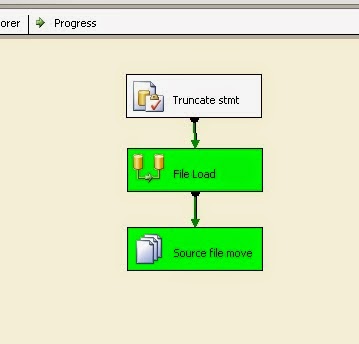
      I am having an SSIS package. That package extracts data from file and loading it into a table. Before loading the data, table will get truncate. After loading the data, moving the source file from source location to archive folder.


     You can see the the ETL package in the above screen. In that package i am going to implement checkpoints.
  • In 'Control Flow' right click and select properties (Don't select any task).
  • Properties window will open, Set the 'CheckpointFileName'
  • Select the IfExists option from the 'CheckpointUsage' drop-down list.
  • Select 'True' option from the SaveCheckpoints drop-down list.
  • Select the 'Data Flow Task', right-click on that and select properties.
  • From the properties set the 'FailPackageOnFailure' as 'True'.

  • I have removed the source file from source location before running the ETL, so ETL will fail during file load.
 
  • We can see in the above screen that the ETL is failed during file load. We can see the check point file in the given path. If we delete the checkpoint, and restart the ETL. Then the ETL will start from the beginning. Don't delete check point if we need to restart the ETL from the failure point.
  • Stop the ETL and place the source file in the source directory and restart the ETL.
  • In the above screenshot we can observe that the ETL is restarted from the failure point.


Tuesday, 11 November 2014

Multicast Transformation


        Multicast transformation distributes its input to one or more outputs. This transformation is similar to Conditional Split transformation. The difference between the two is that the Multicast transformation directs every row to every output, and the conditional split directs a row to a single output.

Example:
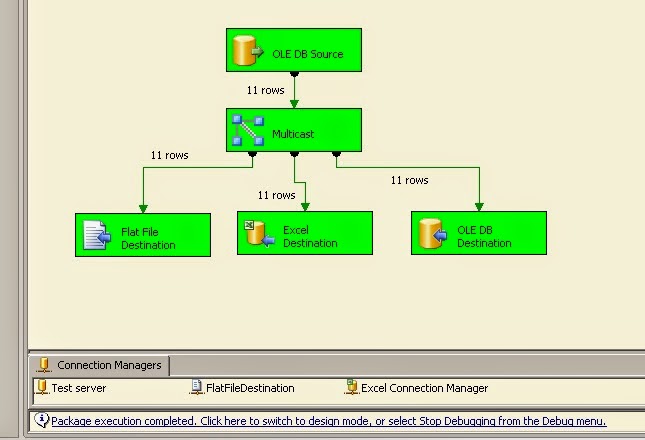
      In this example i have a source table (Employee table), this table data i need to distribute to three different targets (Flat file, Excel file and OLEDB destinations).


  • In control flow drag and drop Data Flow Task
  • Go to Data flow and drag and drop required source (OLEDB Source) and configure.
  • Drag and drop Multicast Transformation and provide connection between source and Multicast transformation.

  • Run the package.


Wednesday, 29 October 2014

Parent Package Variables


      Using "Execute Package Task", we can call other SSIS packages in to current package.We can call the 'Current package' as 'Parent package', other calling packages we can call as 'Child packages'.

      Using 'Parent package variable'  we can call parent package variable value into child package.

Example:
      In this example i am going to explain how to call parent package variable value into child package.
  • Go to parent package and create required variable (Variable: Source_Path, DataType: String, Value: D:\Programs\files\SourceFile.txt).
 
  • Open Child package and create a variable (in this example i am creating variable with same name) with same data type (Variable: Source_Path, DataType: String).
  •  In Child package: Go to 'Control Flow' right click (don't select any task or container) and select 'Package Configurations'.
  • 'Package Configurations Organizer' window will open.
  • Select the 'Enable package configurations' check box and click on 'Add' button.
  • 'Package Configuration Wizard' will open.
  • From 'Configuration type' drop-down list select 'Parent package variable'.
  • Type Parent package variable name in the 'Parent variable' check box.
  • Click on "Next" button.
  • Select required variable value (to assign parent package variable value) .
  • Click on "Next" button
  •  Give 'Configuration name'.
  • Click on "Finish" button.
  • Close the "Package Configurations Organizer" window.
  • Save the package. During run time the parent package variable value will assign to child package.


Monday, 20 October 2014

Error Handling in SSIS


Control flow level error handling:

Data flow level error handling:
  • Error output or Redirect row

Control Flow Items


It contains Tasks and containers

Tasks:

Containers:

Data Flow Items


Data Flow:-
          It contains different Sources (to extract data from source), Transformations (Based on requirement we can modify the source data) and Target (To load data into target database)

Introduction


SSIS:-        
        SQL Server Integration Services (SSIS) is a component of SQL Server. Using SSIS we can perform ETL (Extraction, Transformation and Loading) operations.


Control Flow:- 
           It’s a workflow engine. It contains Tasks, containers and precedence constrains.


Precedence Constraints:-
          Constraints: Precedence constraint is a link between two Control Flow items. There are three types.

  • Success
  • Failure
  • Completion
 
Data Flow:-
          It contains different Sources (to extract data from source), Transformations (Based on requirement we can modify the source data) and Target (To load data into target database)

Event Handlers:- 
          Based on SSIS package execution different event will fire. For example, package is failed the OnError event will fire. We can create custom event handlers to manage SSIS package at run time.


Connection Manager:- 
          It holds necessary information to connect particular source/target.